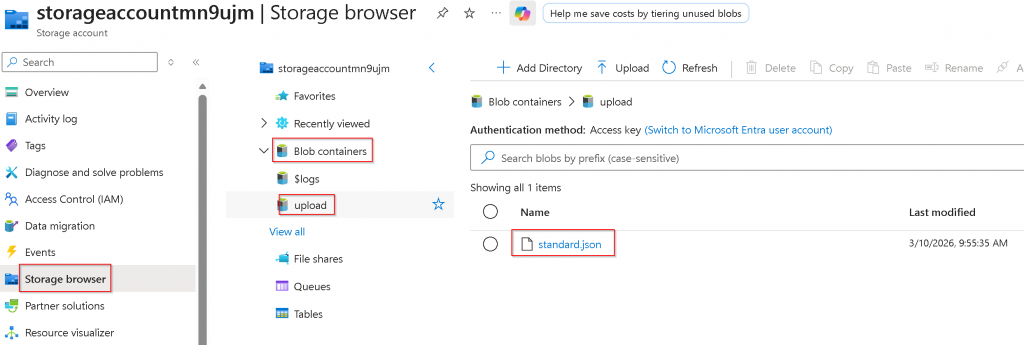
When working with your customer or partners, often time you will need to exchange files. Sending files via email might not be as secure. If you have an Azure subscription and you may utilize Azure Storage Account SFTP feature to allow secure file transfer.
Create Azure Storage Account
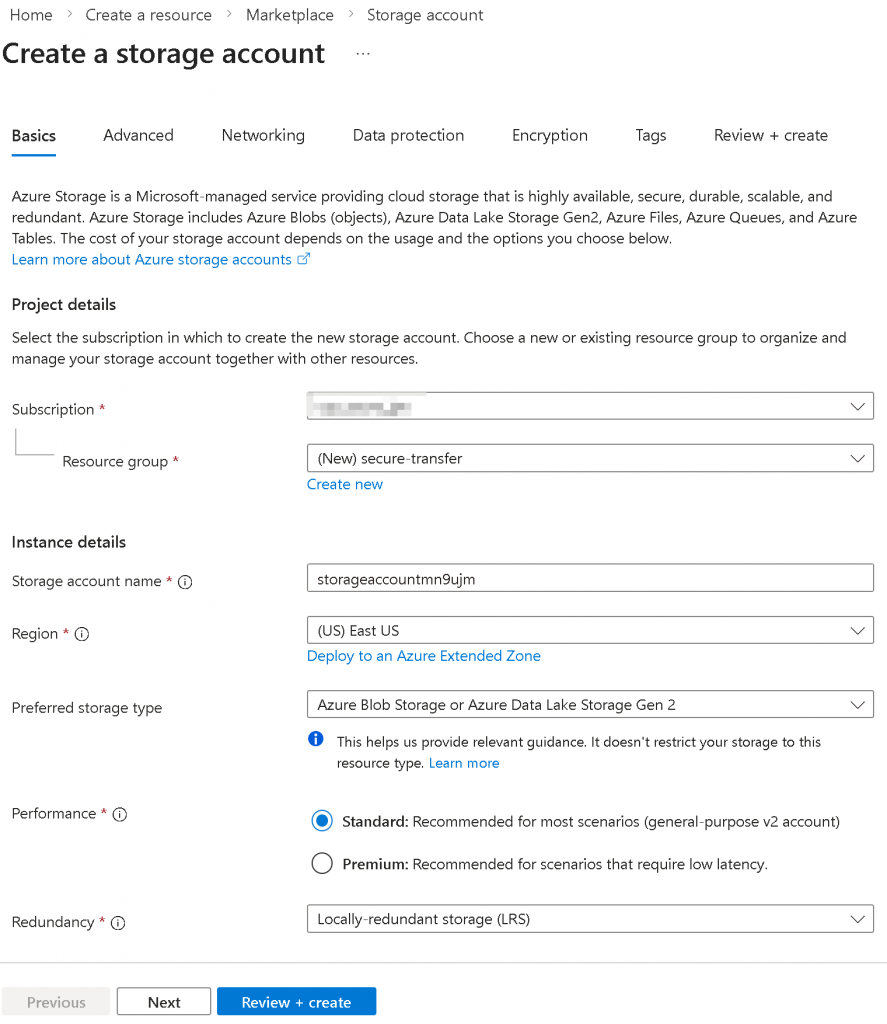
In following example, I’m creating a Azure Blob Storage or Azure Data Lake Storage Gen 2 LRS storage account storageaccountmn9ujm in East US, click on next
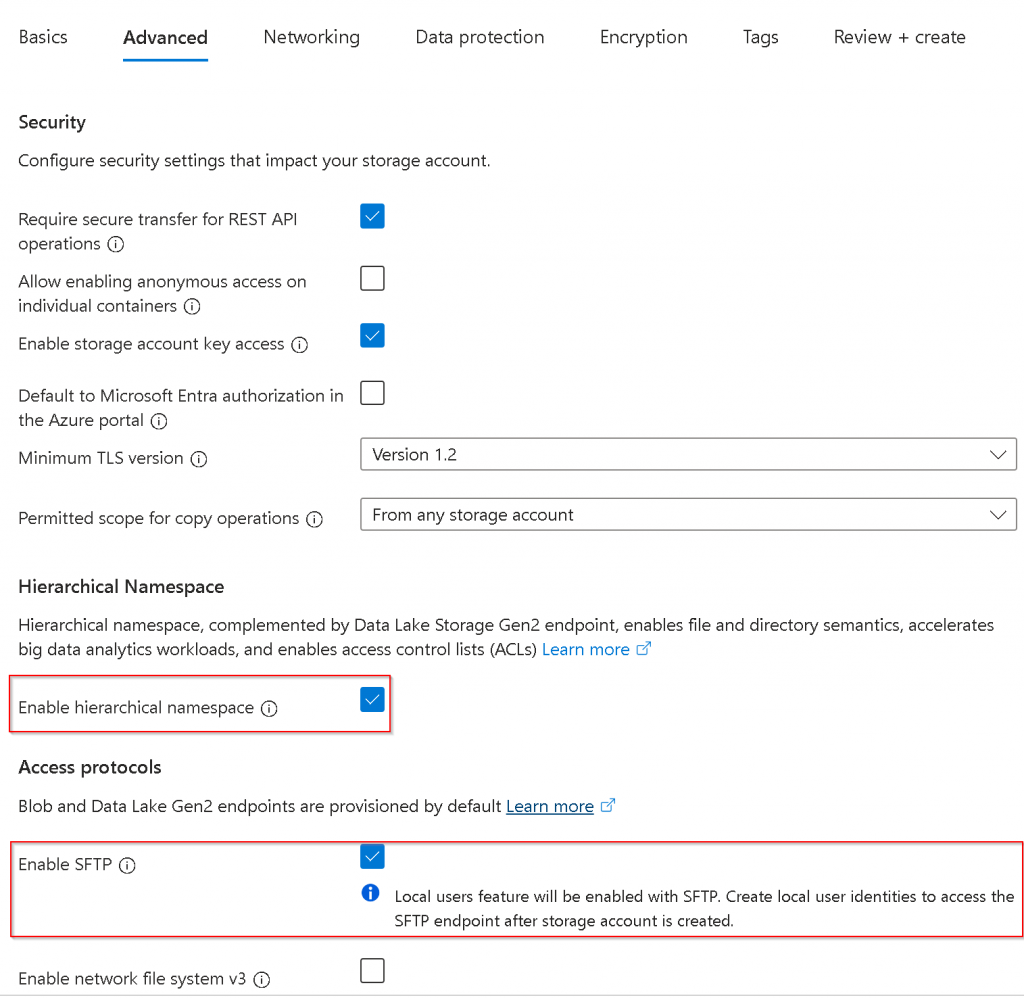
In the Advanced tab, select Enable hierarchical namespace, then select Enable SFTP
Select Review and Create
Create local SFTP account and assign permission
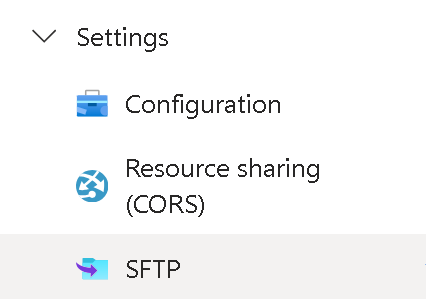
Once the storage account is created, go to the storage account -> left side panel -> Settings -> SFTP
Click Add local user

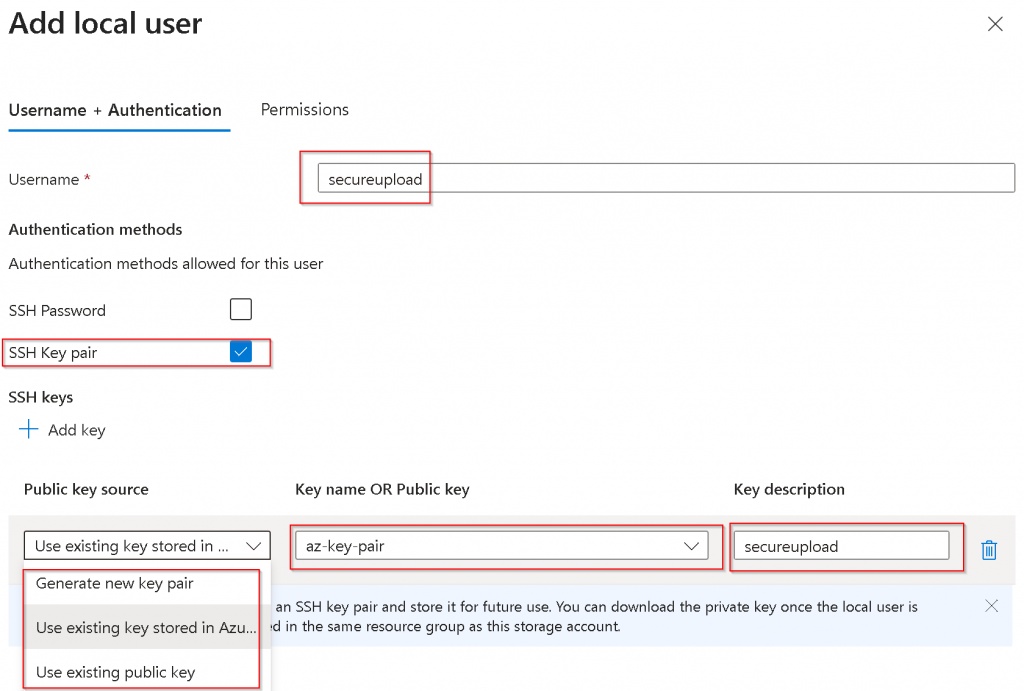
Specify Username
I’d pick SSH Key pair over SSH password for additional security
You have a choice to either
- Generate new key pair
- Useful when you intend to use this SFTP for yourself, and you didn’t already have a key pair, Azure will generate public key and private key, it will store the public key, and prompt you to download the private key
- Use existing key stored in Azure
- Useful when you already have key pairs, and uploaded the public key into Azure. Since I already have public key uploaded, I’m selecting this option for demo purpose
- Use existing public key
- You may ask your customer / partner of their public key, then enter in Key name OR Public key section
Always remember to provide a description to the key for future references
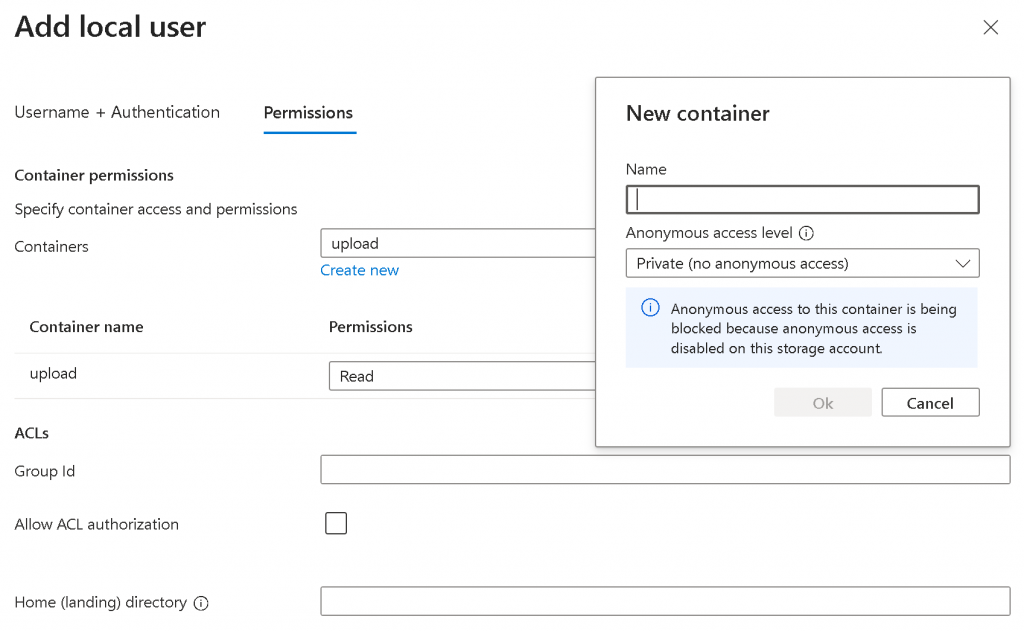
Switch to Permissions tab
First Containers -> Create new -> Create a container for storing the uploaded files.
Note, by default the container is Private
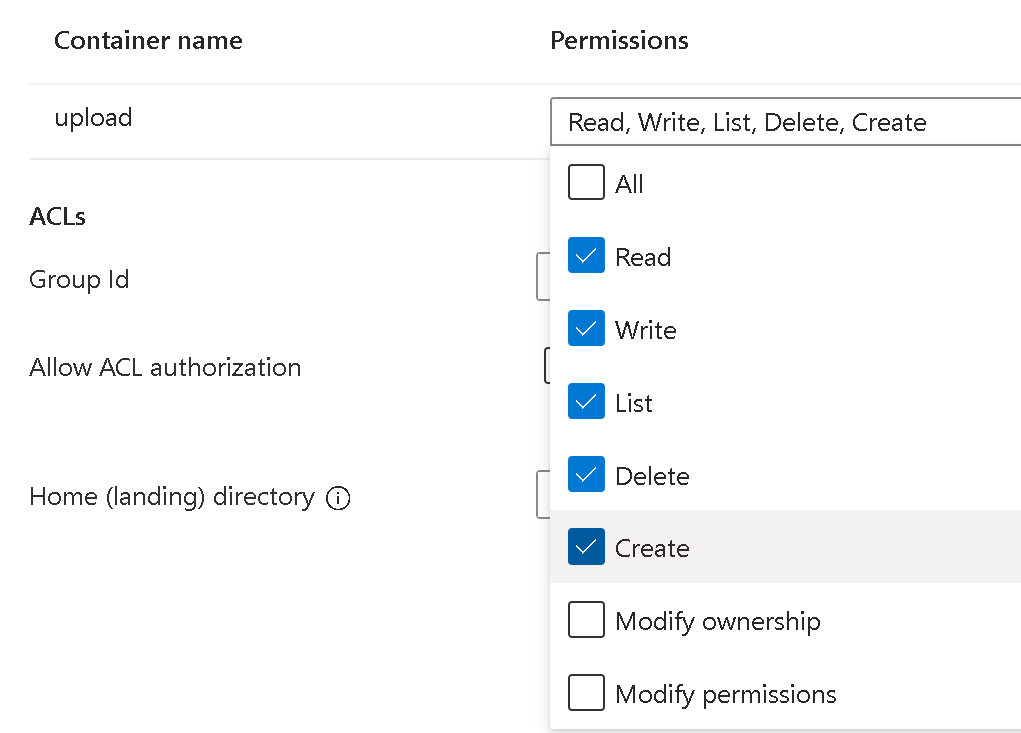
Give permission to the local user for the container.
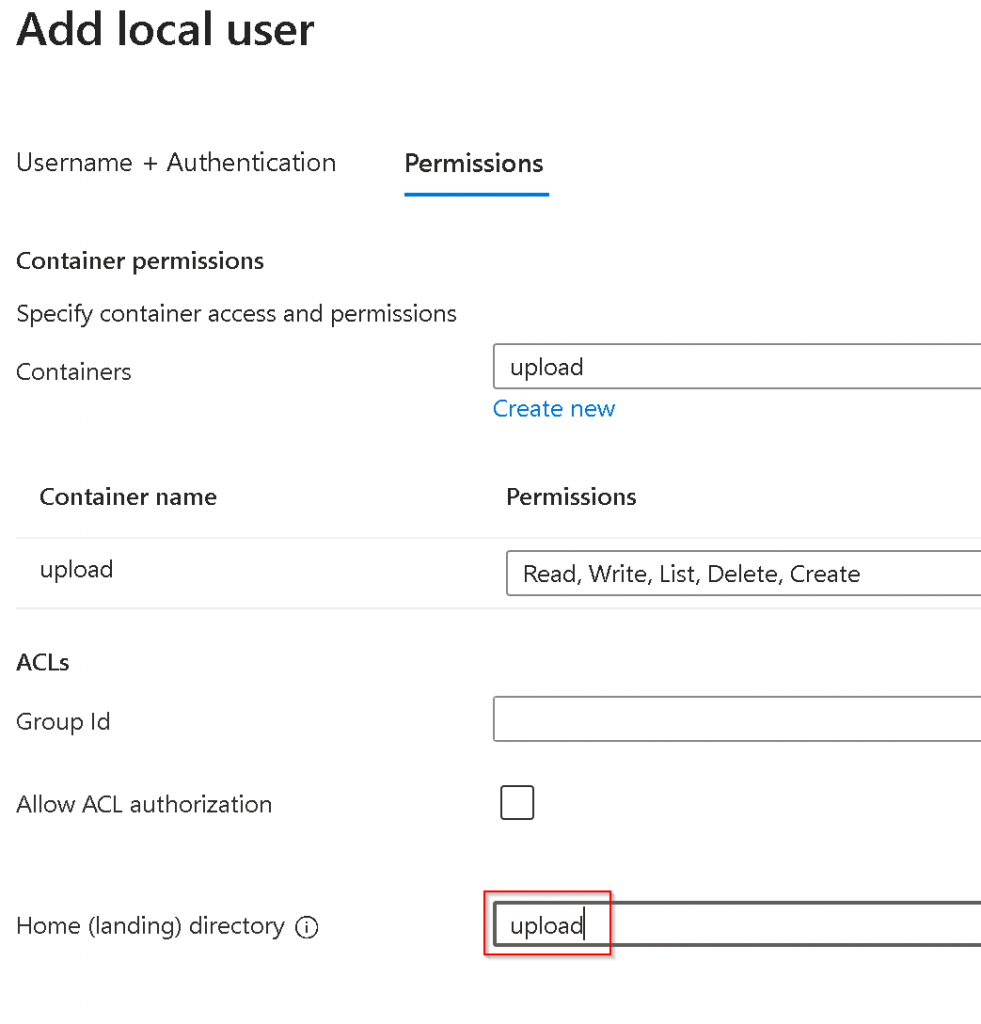
If you want the user to go directly to your container, then specify the container name as the Home (landing) directory
Click on Add, you will see the local user gets created, pay attention to the Connection String

How customer / partner upload files
You will need to provide Connection string to your customer / partner, in my example: storageaccountmn9ujm.secureupload@storageaccountmn9ujm.blob.core.windows.net
Customer / partner will then goes to command prompt
sftp -i <private_key> <connection_string>For example below, after add the new connection to list of known hosts, you will be at sftp> prompt

To send a file
put <local_file_path> <remote_file_name>
Validate file uploaded
Storage account -> Storage browser -> Blob Containers -> <container> -> check if the file is there